
AI call summaries
Turn on AI for your workspace and answered calls become a short overview, a list of action items and a full transcript, so nobody has to take notes.
1What you get
- Overview: two or three sentences on what the call was about.
- Action items: who needs to do what, already pulled out.
- Topics and sentiment: a quick read on how it went.
- Transcript: every word, by speaker, that you can search.
- Live transcript (optional): watch the words appear during the call.
2Turning it on
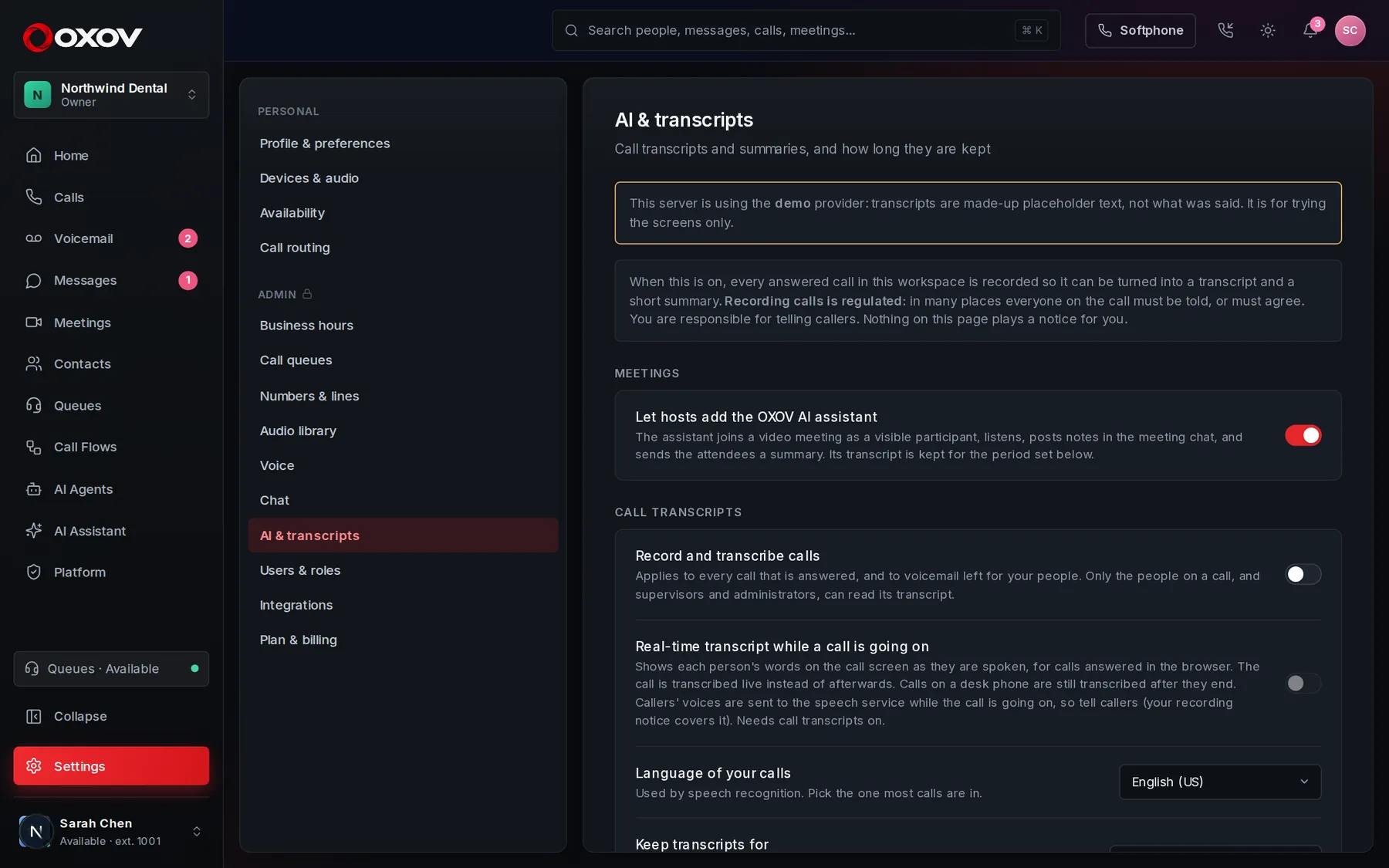
- Open the settingAn admin opens Admin → AI → Transcripts & summaries.
- Switch it onTurn on transcribe calls. Answered calls are then recorded so they can be transcribed.
- Choose how long to keep themSet the retention period. Transcripts are removed automatically after it.
- Optional: real-timeTurn on live transcription to see the words as they are spoken.
3Live assist: help while you are on the call
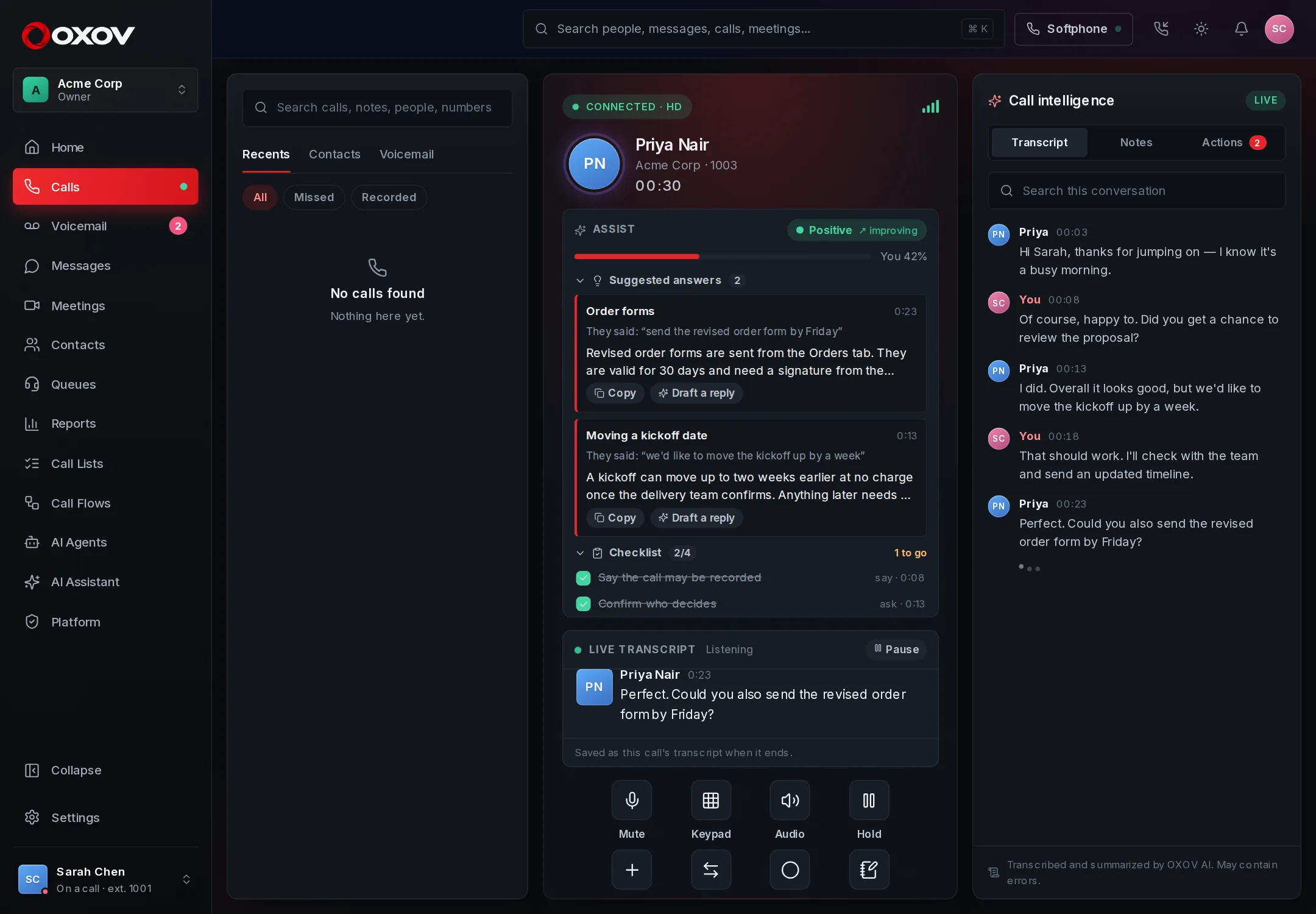
When live transcription is on, an Assist panel sits beside the conversation for the person on the call. It follows what is said as it is said, and costs nothing extra to run: it works from plain rules and your own words, not from a second AI call.
Suggested answers
When the caller asks about something in your knowledge, the best passage appears with what they said. Copy it, or press Draft a reply for a short spoken answer written from it.
A checklist that ticks itself
Compliance phrases to say (“this call may be recorded”) and discovery questions to ask (“who decides?”). Each one is ticked the moment the words are heard, with the time.
How the caller feels
A running read of their mood from what they say: positive, neutral, slipping or upset, with whether it is getting better or worse and the words behind it.
Who is talking
Your share of the talking, so you notice when you have been going on too long.
Set it up (admins)
- Turn on live transcriptionAssist works from the words of the call. Under Admin → AI → Transcripts & summaries, switch on transcribe calls and live transcription.
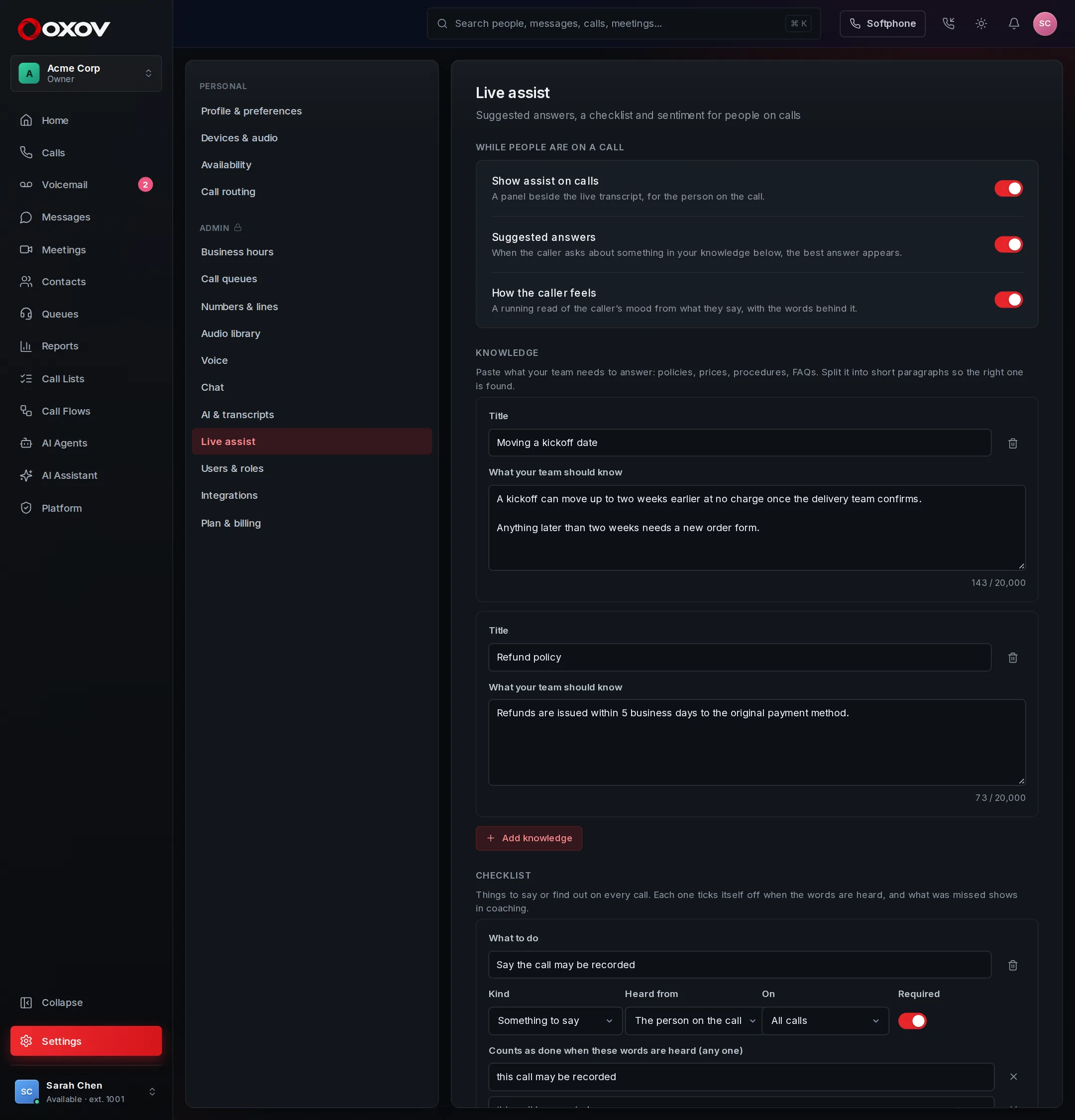
- Add your knowledgeUnder Admin → AI → Live assist & coaching, paste policies, prices and procedures as short paragraphs. Up to 30 sources.
- Write the checklistFor each item say what to do, who has to say it, whether it applies to calls that come in, calls made, or both, and the words that count as done. Close enough counts: a slip of speech does not hide a long phrase.
4Using summaries
- Open any call from Home or Calls → Recents to see its summary and transcript.
- Press Ctrl K and type a word: results include summaries, transcripts and your own notes.
- Ask the AI Assistant questions that span many calls.
- Voicemails get a transcript and a one-line summary too.