
Meetings
Start a meeting in one click, schedule one with invitations, or share your own room. Guests join with a link and a PIN, and anyone can dial in from an ordinary phone.
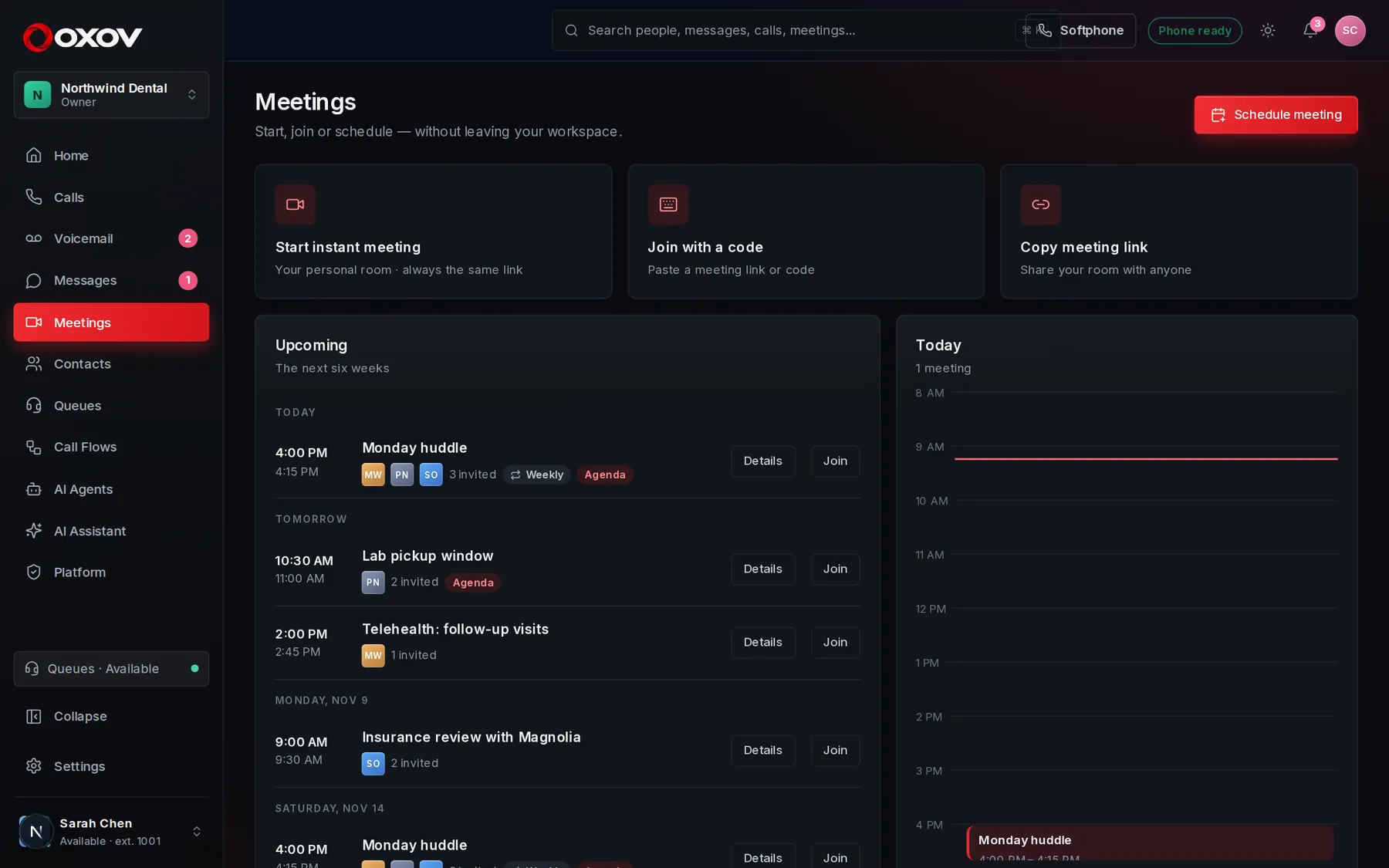
1Start or schedule
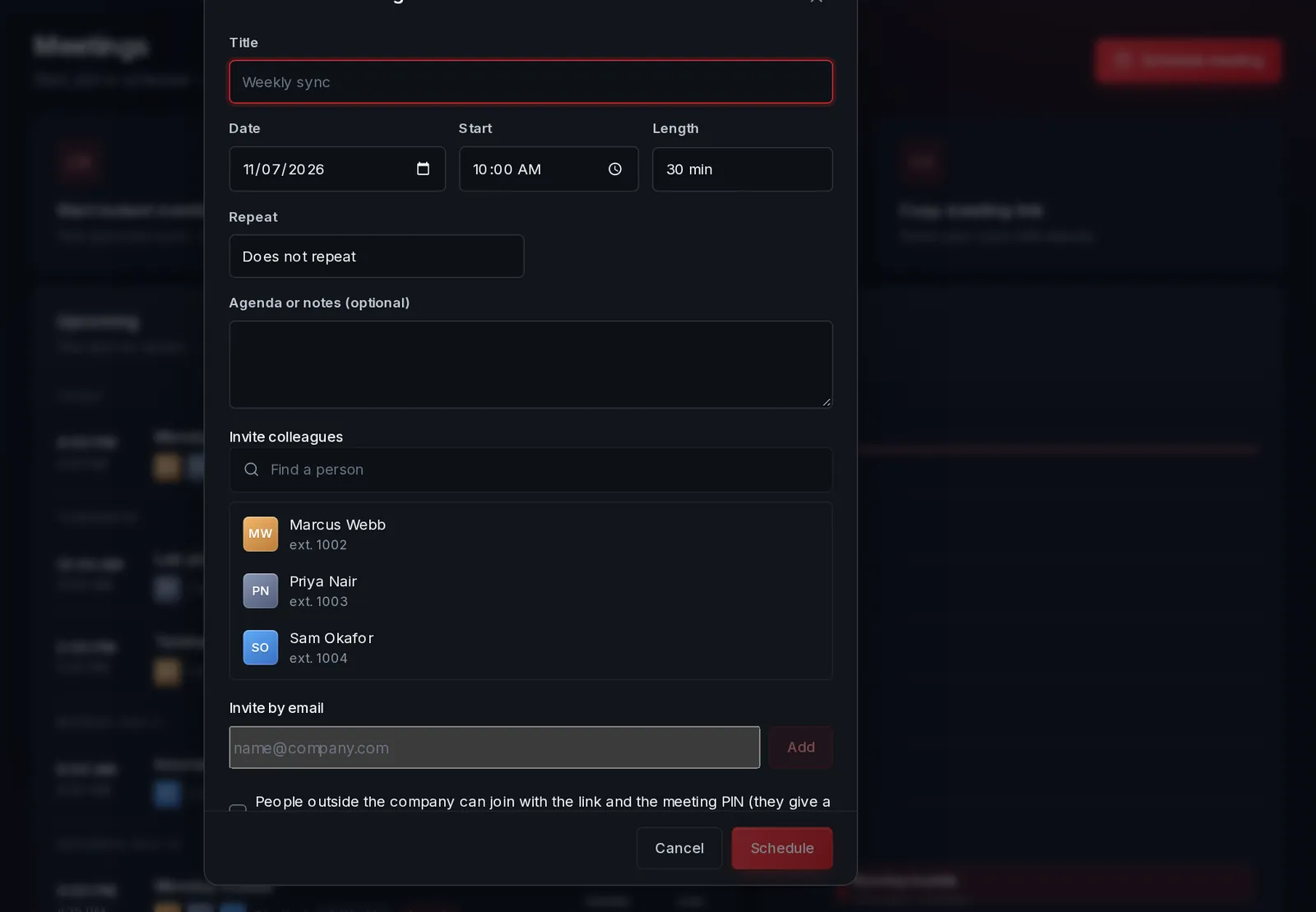
Schedule a meeting
Pick a time, add a description, and invite colleagues or outside guests by email. Everyone gets the link and a PIN, and the meeting shows in their calendar list.
- Invite colleagues from your directory, or anyone by email.
- Allow guests with a link and PIN, or keep it to your team.
- Tick AI assistant to have notes taken from the first minute.
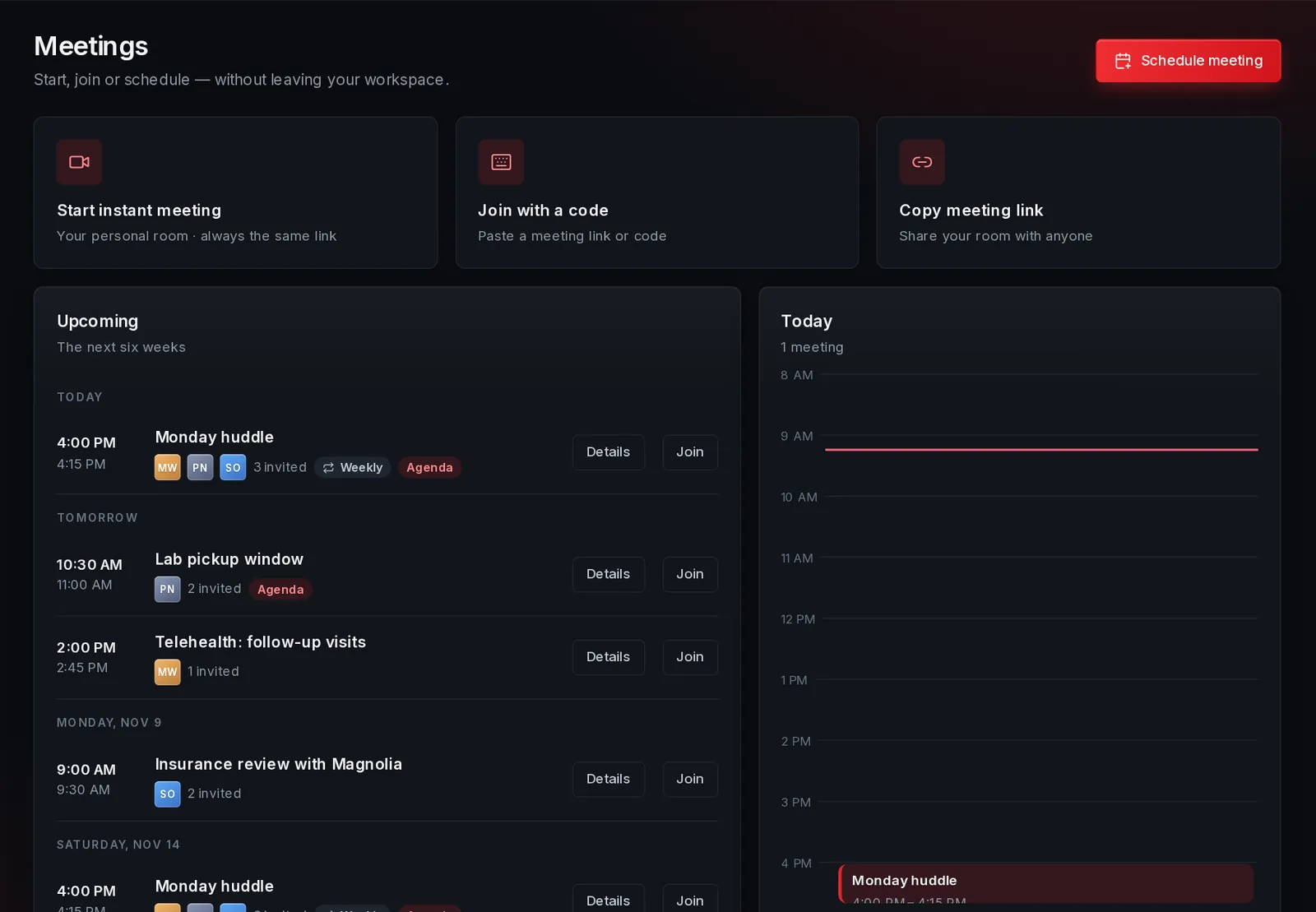
Instant meeting
Press New meeting to start right now and share the link. The room opens immediately, and the PIN protects it from strangers.
- Start from a chat, from the Meetings page, or from a contact.
- See upcoming meetings and past meetings in one list.
2In the room
Screen sharing
Share a window or your whole screen with one click.
Chat in the meeting
Messages and links stay with the meeting afterwards.
People list
See who is in, who is a guest, and who dialled in by phone.
Host controls
Mute or remove people, or end the meeting for everyone.
3Guests and phone dial-in
- Guests type their name and the meeting PIN. They do not need an account.
- Dial in from any phone: call the number shown on the invitation, enter the PIN followed by #, and you are in the room.
- A wrong PIN is refused, and repeated wrong guesses lock the door.
- Phone callers appear as “Phone caller” without their number, to protect their privacy.
4The AI assistant
The Cadence AI assistant can sit in on any meeting. It joins as a visible participant, everyone sees an AI notes on badge, and it listens, writes short notes in the chat as you go, and tells the room when you are halfway, five minutes from the end, and out of time.
- Add itOpen the meeting’s settings menu and choose Add Cadence AI Assistant, or tick the box when you schedule.
- Let it workNotes appear in the chat and in the AI notes tab, with a timeline of what it captured.
- Get the summaryWhen the meeting ends it posts decisions, action items with owners, open questions and what each person contributed, and emails it to attendees.
5Afterwards
Every meeting with notes is kept under Past meetings, where anyone who was there can read the summary, the action items and the notes. You can also ask the AI Assistant about it later.