Call lists
Overdue invoices, appointment reminders, follow-ups: put the people who need a call on a list, give it to a person or an AI agent, and see how it went. A person sees a focused queue on their Calls page and dials with one click; an AI agent makes the calls itself.
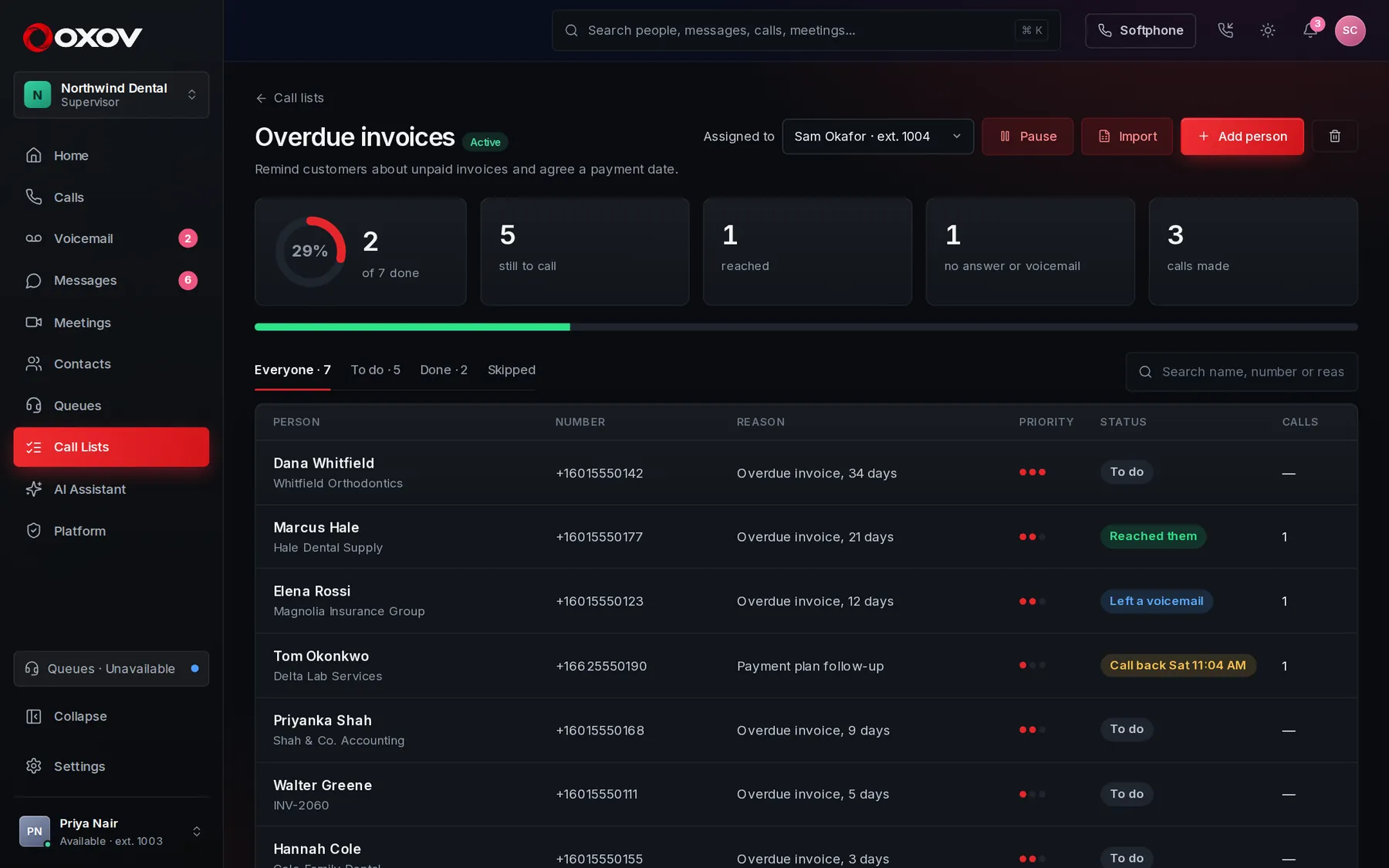 1234
- How far along the list is, updated live as calls are made.
- Who the list is given to. Change it at any time.
- Add people one at a time, or import a spreadsheet.
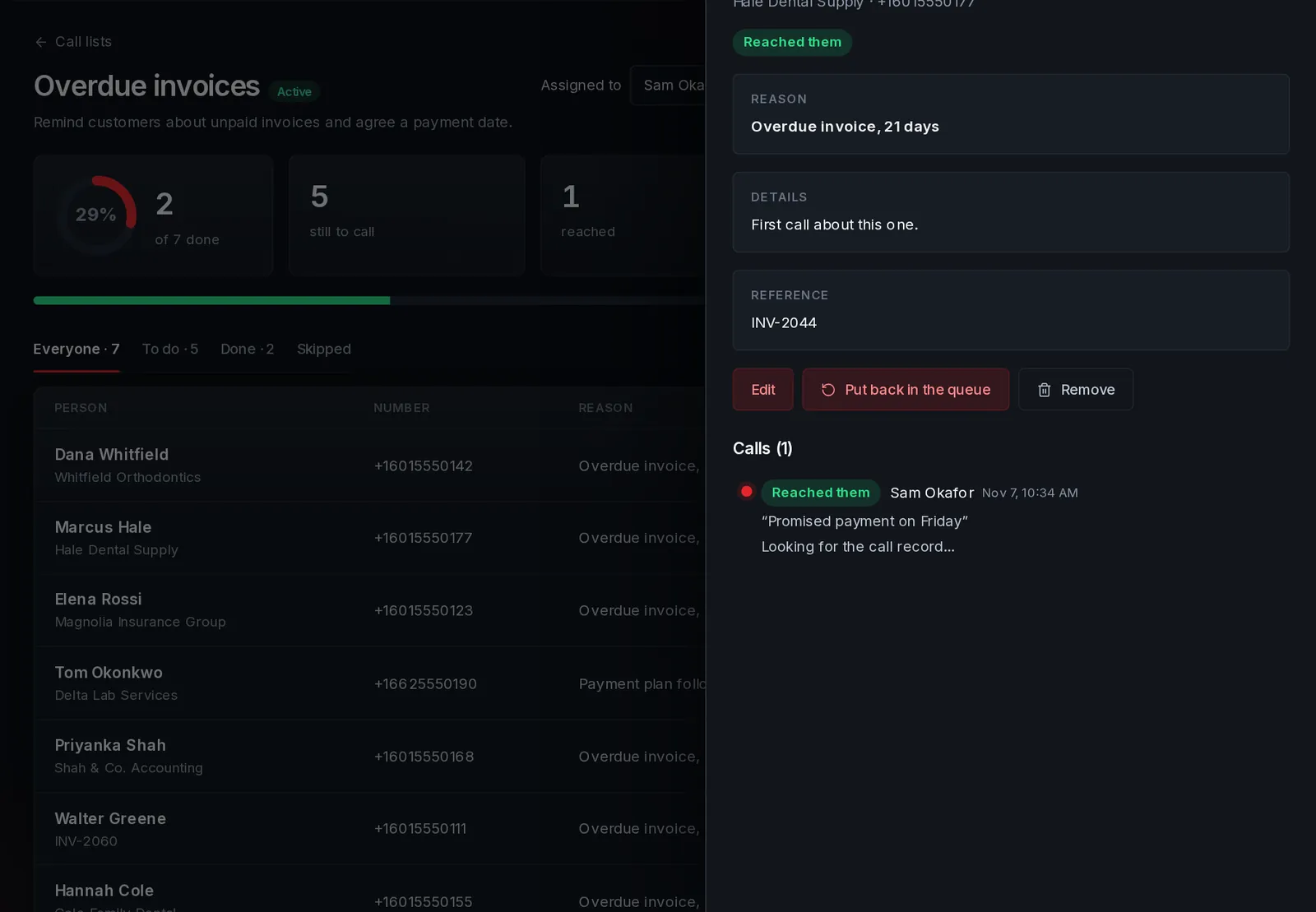
- Click anyone to see every call made to them.
1How it works
- Create a listOpen Call Lists and press New list. Name it, say what it is for, and choose who it is given to.
- Add peopleAdd them one at a time, or import a spreadsheet. Each person has a name, a number to dial, a reason for the call, details, a reference and a priority.
- They callThe person the list is given to sees it on their Calls page, with the next person ready. One click dials.
- You reviewWatch the progress, and click any person to see each call: who made it, when, how it went, and the call’s summary and transcript.
2What goes on each person
| Field | What it is for |
|---|---|
| Contact name and number | Who to call, and the number that is dialled. |
| Company and reference | Where they work, and an account, case or invoice number to have in front of you. |
| Reason for the call | Shown in large type, so the caller knows why they are calling before they dial. |
| Details and other info | What to say, what has happened so far, and anything useful (“prefers mornings”). |
| Priority | High priority people are offered first. |
3Import a spreadsheet
Press Import, drop in an Excel (.xlsx) or CSV file, and tell Cadence Talk which column is which. It guesses from the headings, so most files need no changes. You see a preview before anything is added.
Rows with no usable number are skipped and listed so you can fix them, and anyone already on the list (same number and reason) is not added twice.
- Up to 5,000 people at a time.
- Download a template to start from.
- High, Normal and Low (or 3, 2, 1) become priorities.
4The person making the calls
A focused queue on the Calls page
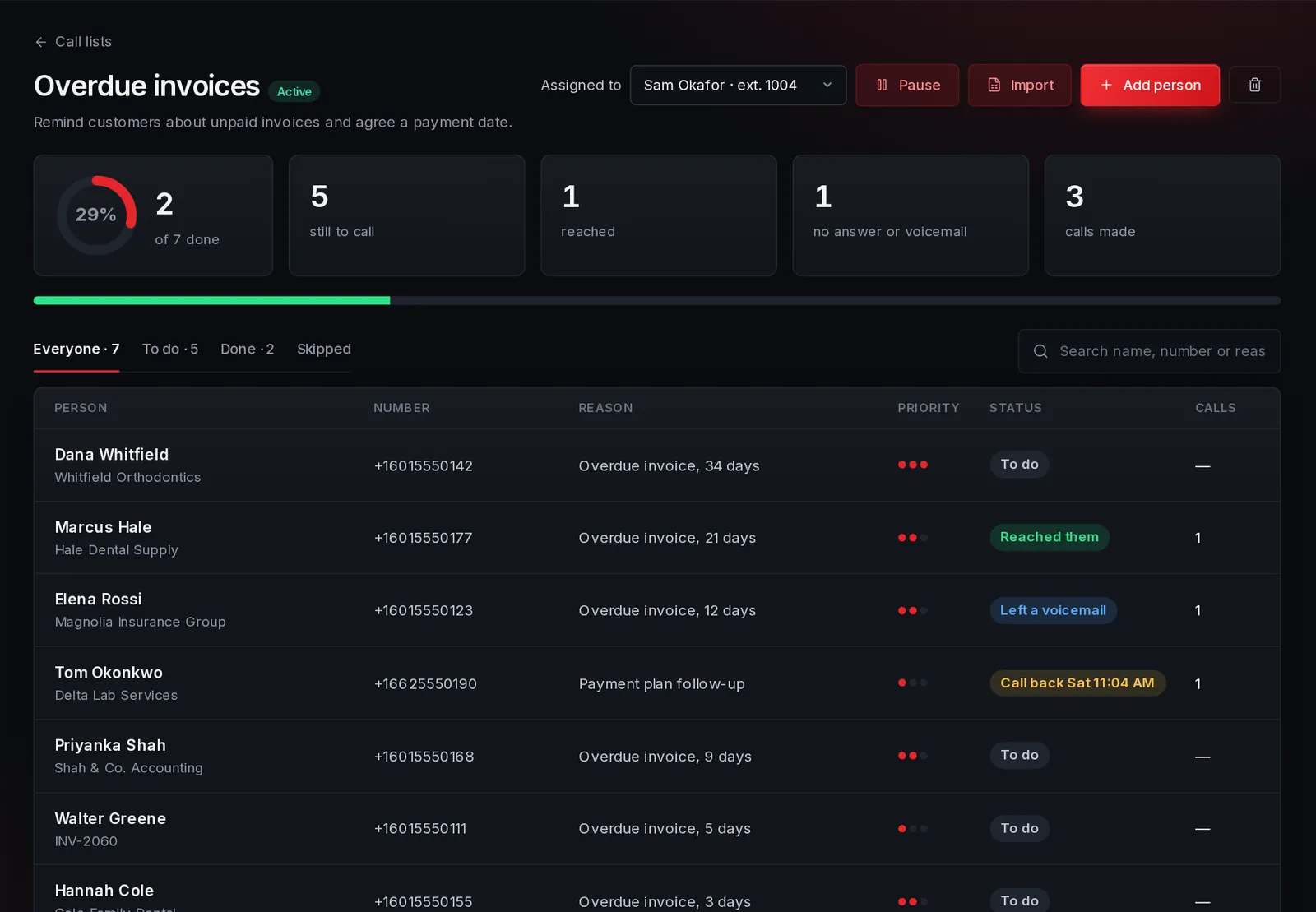
When a list is given to you, My call list appears on your Calls page. It shows who is next and why you are calling, with the details, reference and anything the last caller noted.
- Call dials in one click. The reason and details stay beside you during the call.
- Not now moves someone to the back of your queue.
- Coming up lists everyone still to call, numbered, in a scrollable list. Click anyone to jump to them, search by name or reason, or press their phone button to call them straight away.
- A progress ring fills as you work through the list.
- People who did not answer come back later, and call-backs wait for their time.
After every call
When the call ends you choose how it went, and add a note if you want. That is the only card you see: the result is saved, the call is closed, and the next person is ready on your list.
| Result | What happens |
|---|---|
| Reached them | Done. Their entry is completed. |
| Left a voicemail | Done. |
| No answer | Tried again later, until the list’s limit (3 by default). Then it is marked done as “no answer”. |
| Call back later | Waits for the time you choose: in two hours, tomorrow at nine, in three days, or a time you pick. |
| Wrong number | Done. |
| Do not call again | Done, and never offered again. |
5Give a list to an AI agent
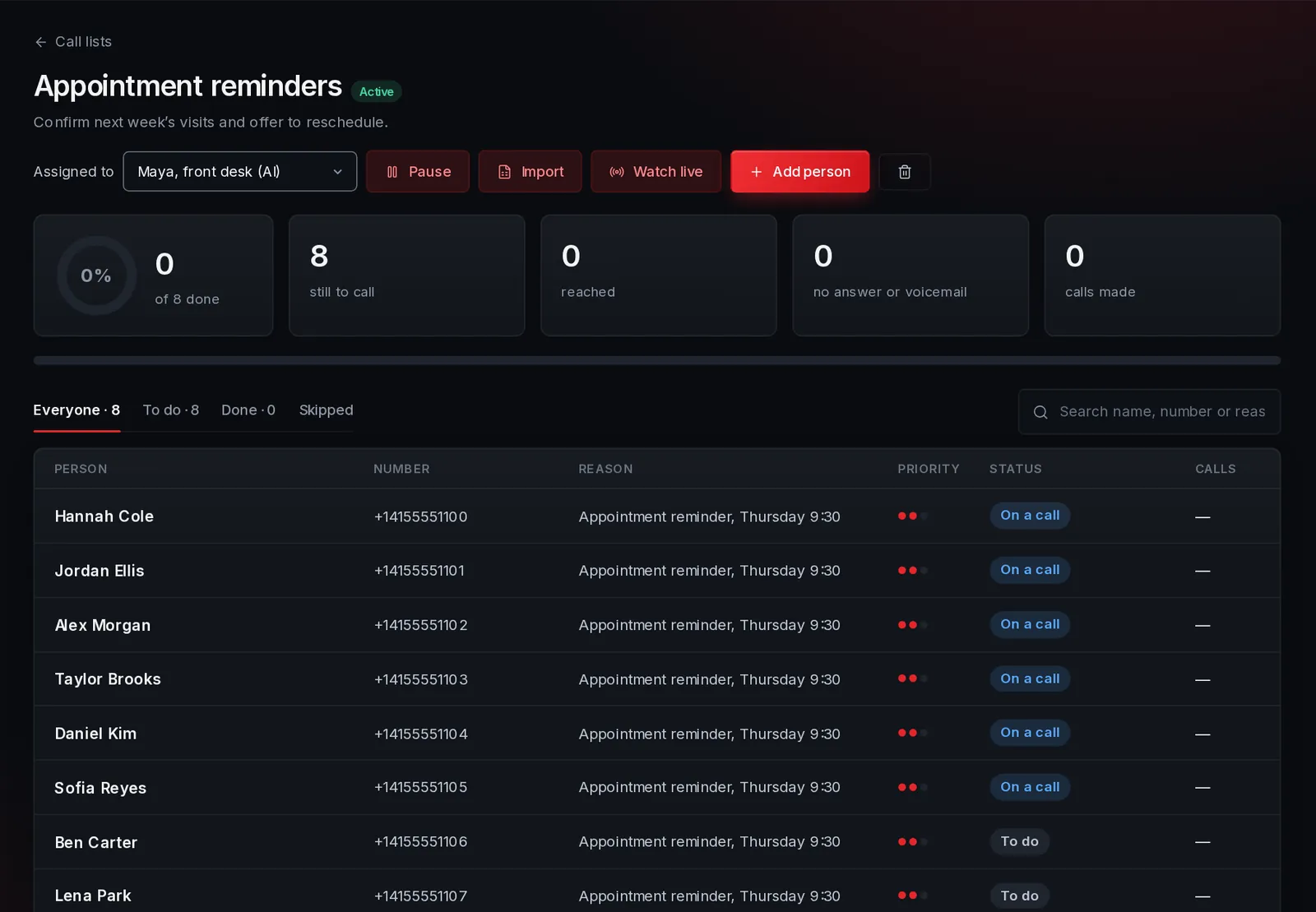
A list can be given to an AI agent instead of a person. Choose the agent in the Assigned to menu (only agents set up to make calls appear), and it starts dialling the list, within its calling hours.
- It makes up to as many calls at once as you allowed.
- Each attempt is on the list like a person’s, marked as made by the AI agent, with the conversation to read.
- Watch live opens the live monitor for listening in, whispering or taking over.
- Pause the list, or the agent, at any time.
6Reviewing the calls
Open a list to see progress at a glance: how many are done, how many reached, how many to go. Click anyone to open their record.
- Every attempt: who called, when, how long, the result and their note.
- Open the call to see its AI summary and transcript, when AI call summaries are on.
- Edit a person, or put a finished one back in the queue.
- Pause the list at any time. Its person is not offered anyone new while it is paused.