
A booking system your phone agents and customers can use
Cadence Talk has its own calendar, so you do not need anything else to take appointments. Your team books from the Calendar, AI agents book while the caller is on the line, and customers can book themselves on a page of their own. Everyone books into the same calendar under the same rules, so nobody is ever double booked.
1What you get
Your own calendars
One for each person, room or chair. Each has the hours it can be booked, and the rules around bookings. No outside calendar needed.
AI agents that book
Callers ask for a day and a time. The agent checks the real calendar, says whether it is free (or what is nearest), books it, and texts the confirmation. It can move and cancel too.
Texts and reminders
A confirmation when it is booked, reminders before, and a message if it moves or is cancelled. Customers can change or cancel from a link.
Google and Outlook
Keep your own calendar in step: events there block times here, and bookings appear there.
An online booking page
A link for your website. Customers pick a service and a time that is really free.
Rules you control
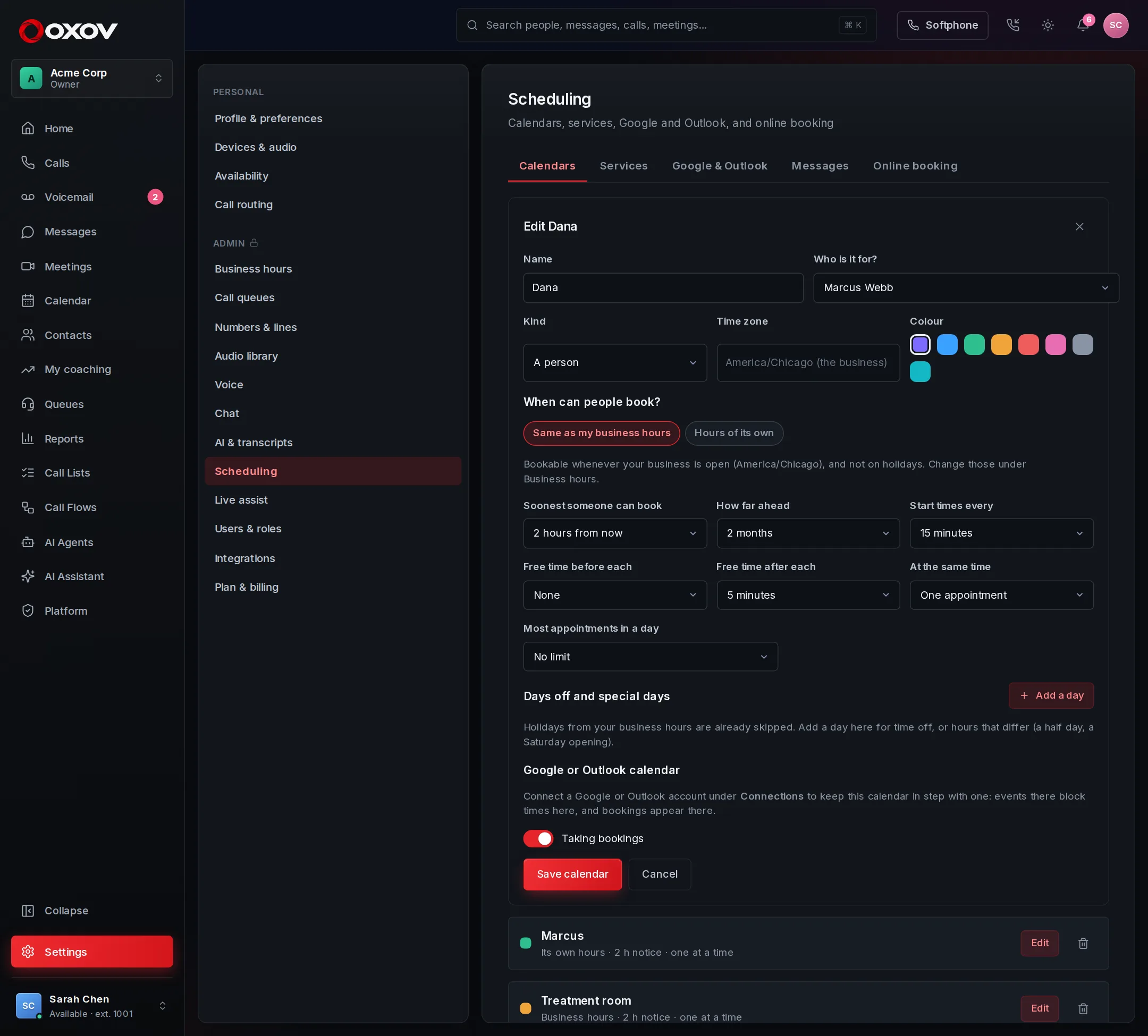
Bookable hours, business hours, notice, how far ahead, breathing space between appointments, how many at once, days off.
2Set it up in five minutes
- Create a calendar and a serviceOpen Calendar and press Create a calendar and a service. They are made from your business hours, and you can change everything afterwards under Admin → Apps & integrations → Calendars & booking.
- Add what people can bookUnder Services, add a haircut, a consultation, a tune-up: how long it takes, an optional price, which calendars can do it, and what to tell people before they come.
- Choose when it can be bookedEach calendar uses your business hours, or hours of its own. Add days off and special days. See Booking rules.
- Set up the messagesUnder Messages, choose texts and email, the reminders, and what the messages say.
- Turn on what you wantGive an AI agent the Booking tab, switch on Online booking, and connect Google or Outlook if you use one.
3The calendar
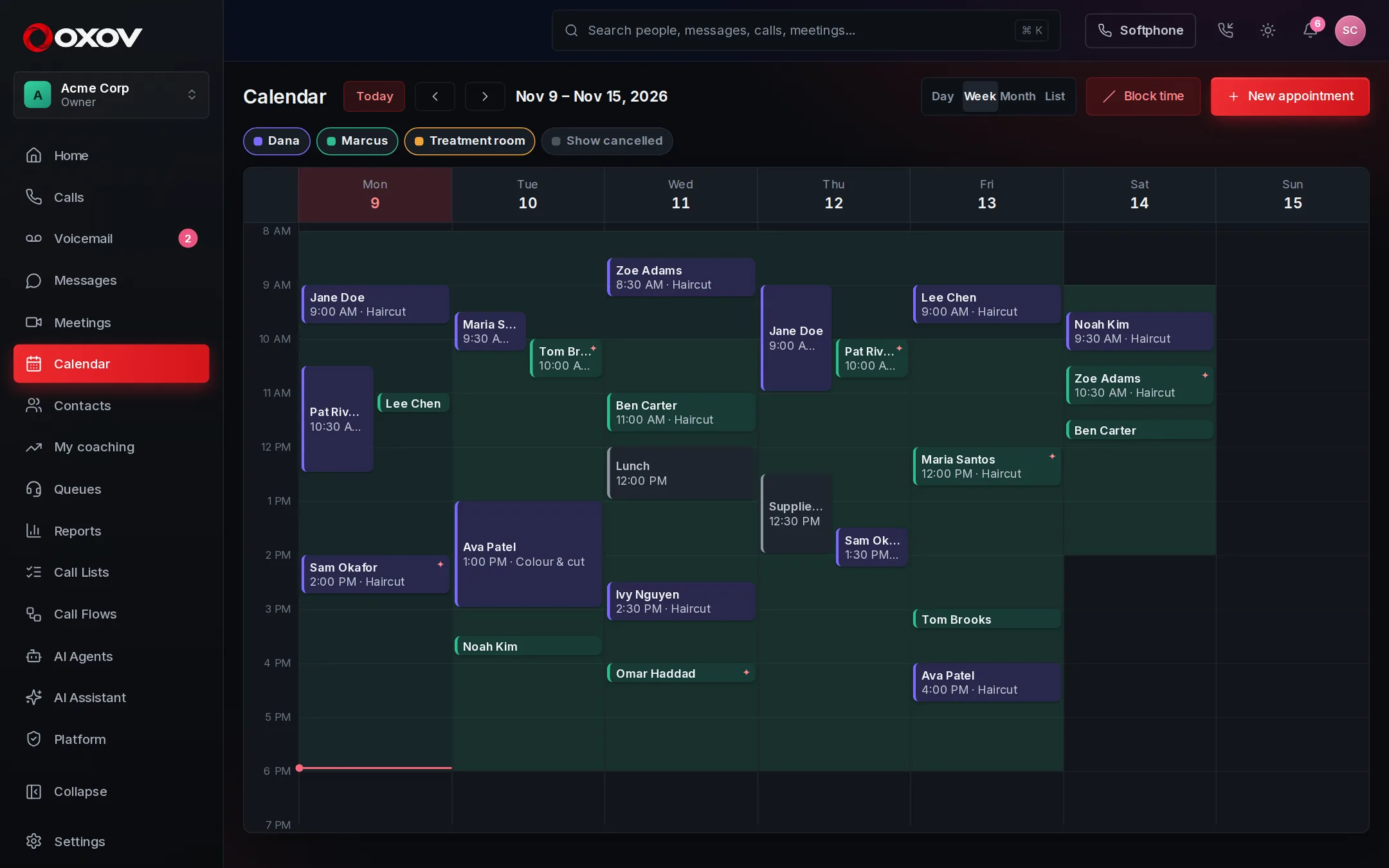
The Calendar page shows every calendar together, by the week, the day (one column for each calendar), the month, or as a searchable list. The green shading is when each calendar can be booked. Hatched areas are busy on a connected Google or Outlook calendar, and a small star marks bookings made by an AI agent.
- Click an empty time to book it, or press New appointment.
- Press Block time for lunch, a day off or a meeting, so nobody can book it.
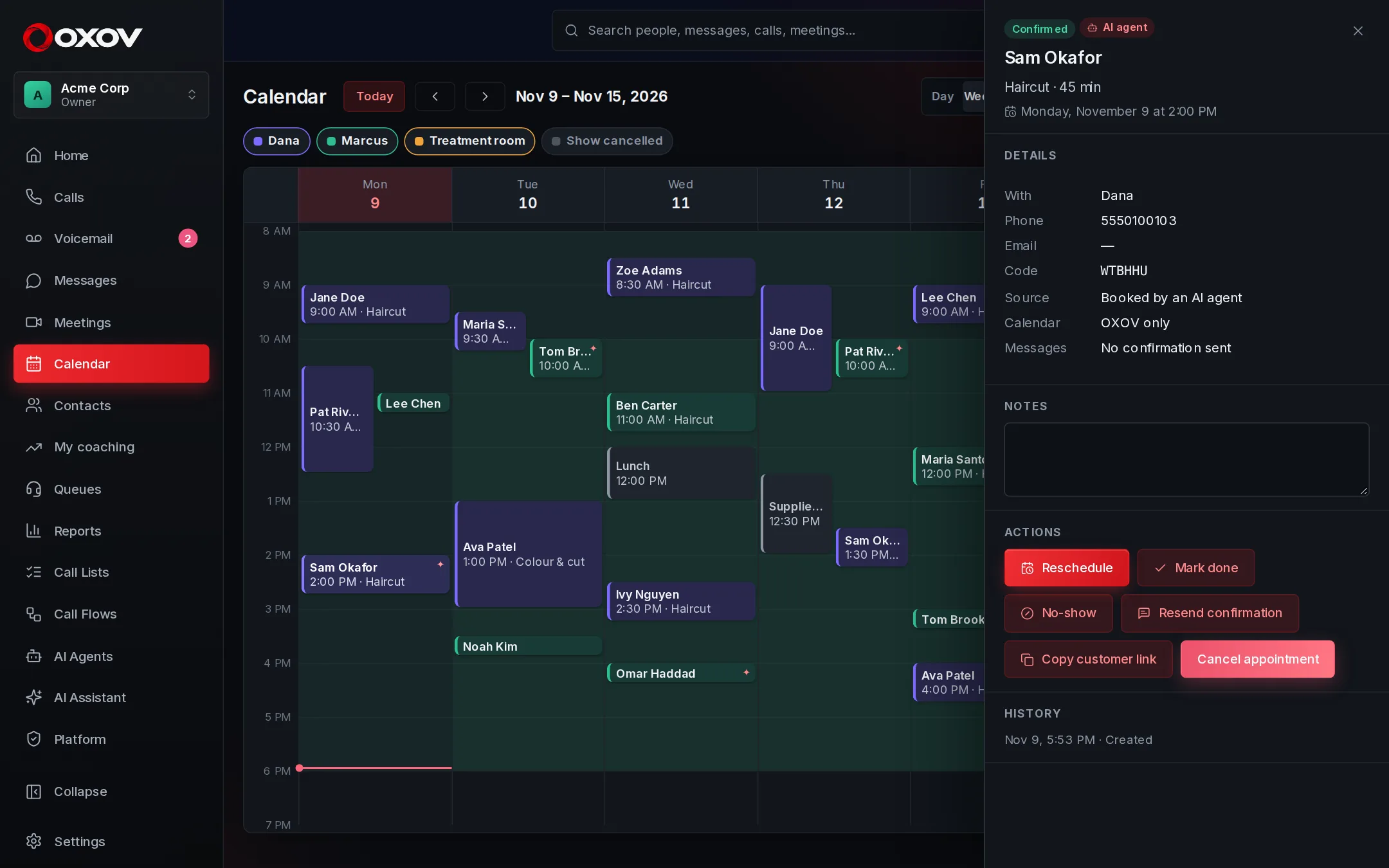
- Click an appointment to see the customer, move it, cancel it, mark it done or a no-show, resend the confirmation, or copy the customer’s link.
- Use the colour chips to show or hide a calendar, and Show cancelled to see what was cancelled.
Booking from the calendar
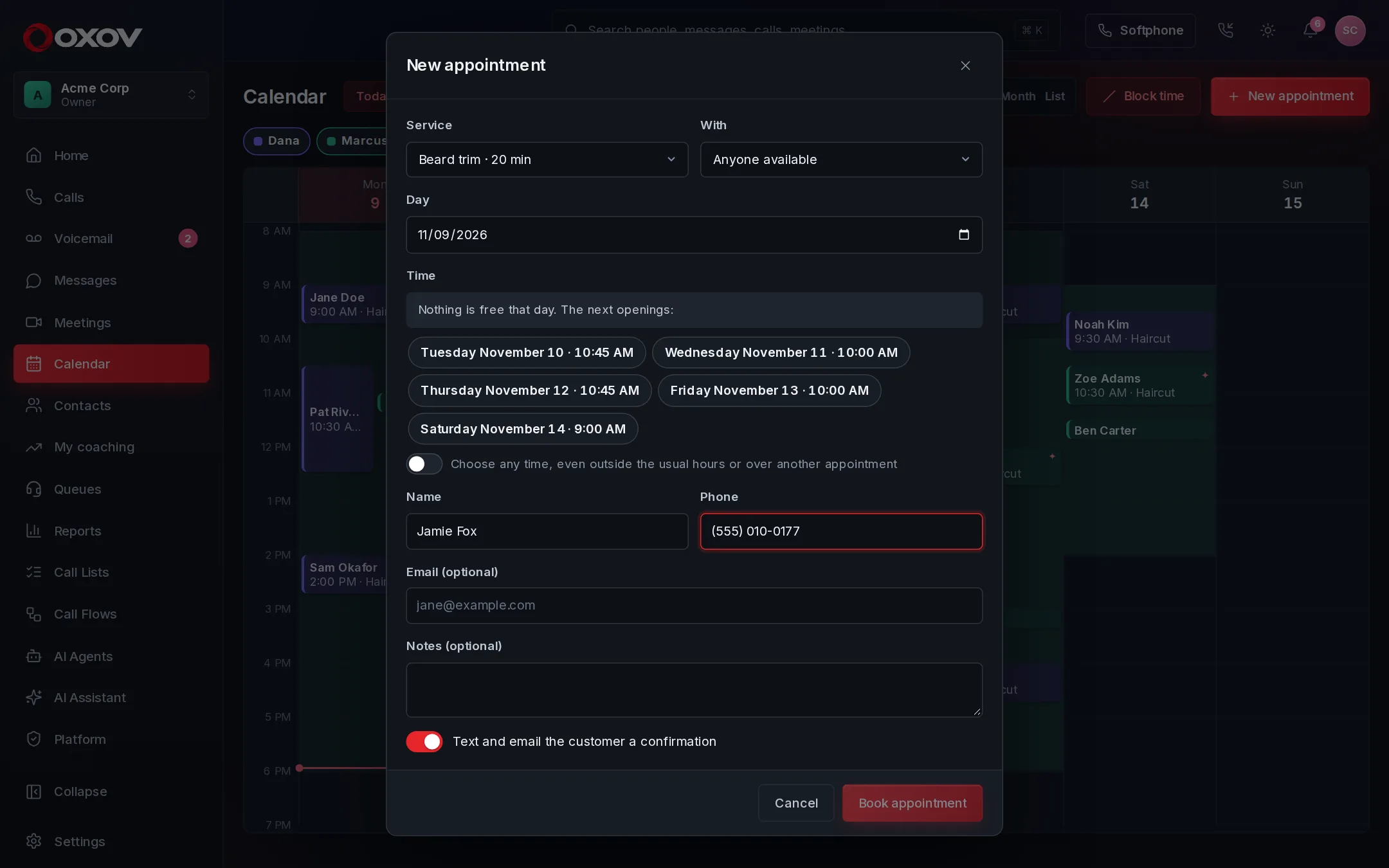
Choose the service, who it is with (or Anyone available), and a day. Only the times that are really free are offered. If a day is full you are shown the next openings. Supervisors and admins can choose any time, even outside the usual hours or over another appointment; the screen says which rule was overridden.
4Booking rules
Every calendar has its own rules, set under Admin → Apps & integrations → Calendars & booking → Calendars. The same rules apply whether the booking comes from your team, an AI agent or a customer.
| Rule | What it does |
|---|---|
| Hours | Either the same as your business hours, or hours of its own for each weekday, with breaks (two or three stretches a day). |
| Stay inside business hours | On by default for a calendar with its own hours: it is never bookable outside your business hours or on a holiday. Turn it off for someone who works different hours. |
| Days off and special days | Close a date, or open different hours (a half day, a Saturday). A day you set here wins over everything else. |
| Soonest and furthest | How much notice you need (none to a week) and how far ahead people can book (two weeks to a year). |
| Start times every | 5, 10, 15, 20, 30 or 60 minutes. |
| Free time before and after | Breathing space kept around every appointment, on top of any a service asks for. |
| At the same time | Up to ten appointments at once, for a team that shares a calendar (three chairs, three at once). |
| Most in a day | A daily limit. Blocks of time do not count towards it. |
5AI agents that book by phone
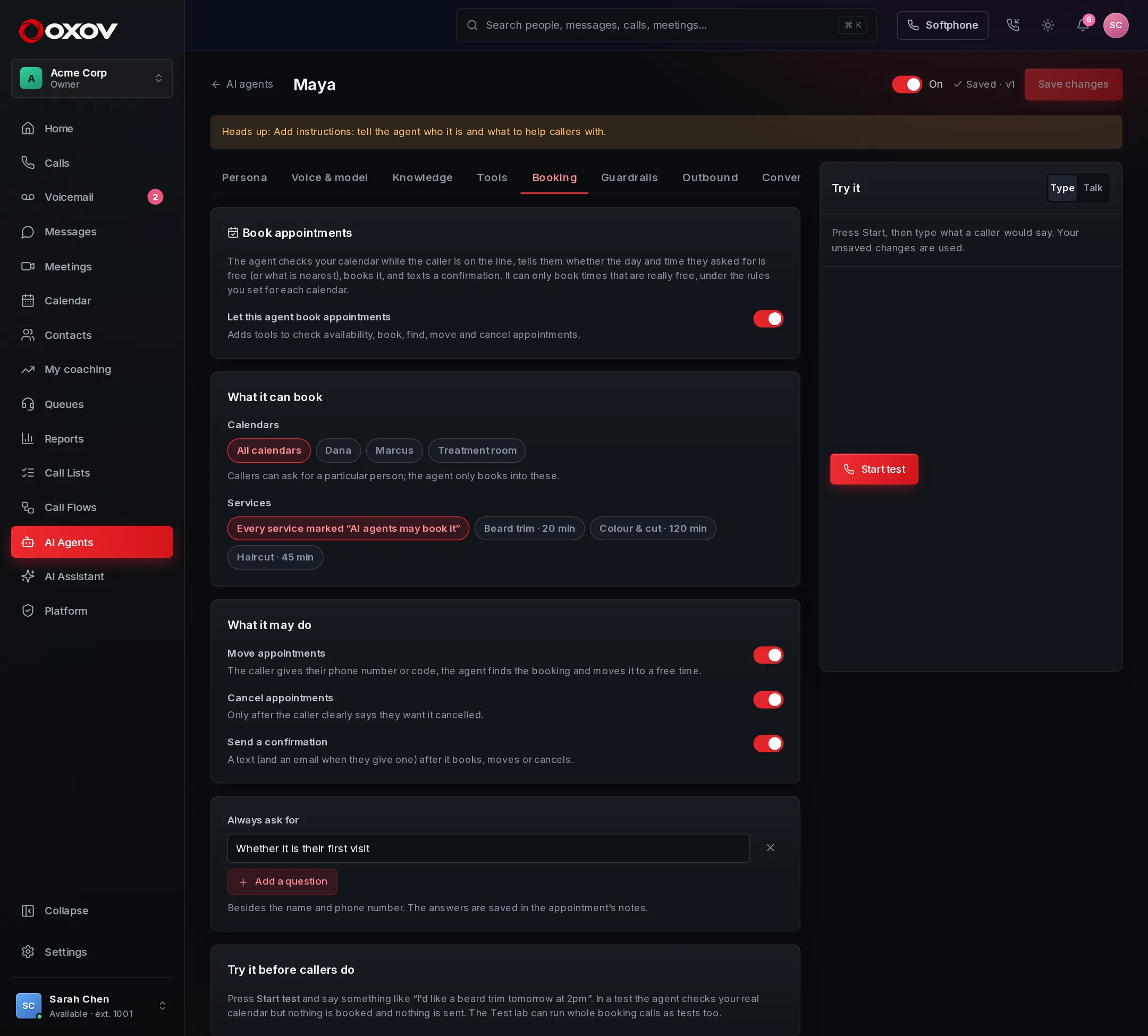
Open an agent, choose the Booking tab and switch it on. The agent gets tools to check the calendar, and instructions on how to use them: never promise a time the calendar did not give it, confirm the details before booking, and only ever talk about the caller’s own appointments.
What a call sounds like
- “Can I get a haircut tomorrow at 2?” The agent checks. If 2 PM is free it says so and offers to book it. If not, it says 2 PM is taken and offers the nearest times that day.
- “Anything next week in the mornings?” It looks across the week and offers a few mornings.
- A full or closed day. It says so and offers the next openings.
- Booking. It asks for their name and the best number (confirming the one they called from), reads the day, time and service back, and books only after a clear yes. A confirmation text goes out if one can be sent, and the agent only says so when it did.
- Moving or cancelling. The caller gives the phone number on the booking or their code; the agent finds it, reads it back, and changes it only after they agree.
The agent understands days and times the way people say them: “tomorrow”, “next Tuesday”, “March 5th”, “2pm”, “after 4”, “in the morning”. Every time it offers is checked again against the live calendar when it is booked, so a time that was taken a moment ago is refused and other times are offered.
| The agent can | Using |
|---|---|
| Check which times are free | check_availability |
| Book one | book_appointment |
| Find a caller’s appointments | find_appointment |
| Move one (if you allow it) | reschedule_appointment |
| Cancel one (if you allow it) | cancel_appointment |
Test it first
In the test console and the Test lab the agent checks your real calendar, but nothing is booked and nothing is sent. Write a Test lab scenario like “asks for a haircut tomorrow at 2” with the check Uses book_appointment, and run it whenever you change the agent.
6Google Calendar and Outlook
Under Admin → Apps & integrations → Calendars & booking → Google & Outlook, press Connect and sign in. Then link a calendar to one of the account’s calendars, on the calendar’s own settings. You can use it either or both ways:
- Busy times block bookings. A dentist appointment in your own Google calendar means that time is not offered here.
- Bookings appear there. Each appointment is added as an event, moved when it moves, and removed when it is cancelled.
Cadence Talk asks only for what it needs: to read when you are busy, and to add, change and remove its own events. If Google or Outlook cannot be reached when someone books, the booking still goes through and the screen says the calendar could not be checked. If access is withdrawn, the account shows Reconnect.
7Texts, email and reminders
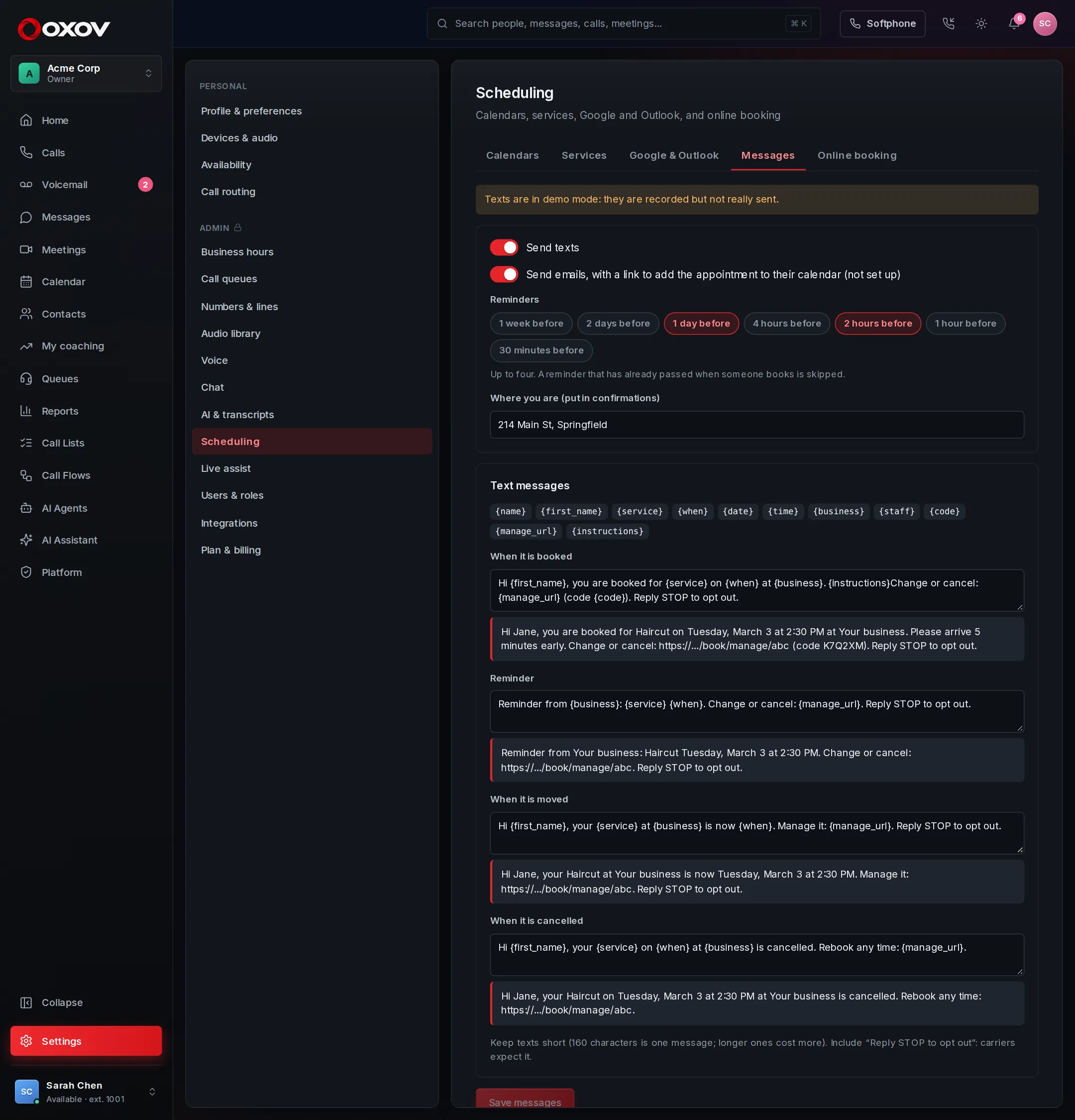
A customer is sent a confirmation when something is booked, a reminder before it (a day and two hours by default, up to four), and a message when it is moved or cancelled. Messages can use {first_name}, {service}, {when}, {business}, {code}, {manage_url} and more, and you see a preview as you type. Emails also carry an add to calendar link and file.
- A reminder is skipped if the appointment was booked after it would have gone out.
- A number that replies STOP is remembered and not texted again.
- Texts are billed to you by the message and counted in your usage. A limit stops a runaway loop from sending a flood.
- Include “Reply STOP to opt out” in your texts: carriers expect it.
8Online booking and the customer’s link
Under Admin → Apps & integrations → Calendars & booking → Online booking, switch it on and copy your link (it looks like app.cadencetalk.com/book/your-business). Customers choose a service, see only the days and times that are really free, and enter their details. Add the link to your website, your Google Business profile or your email signature.
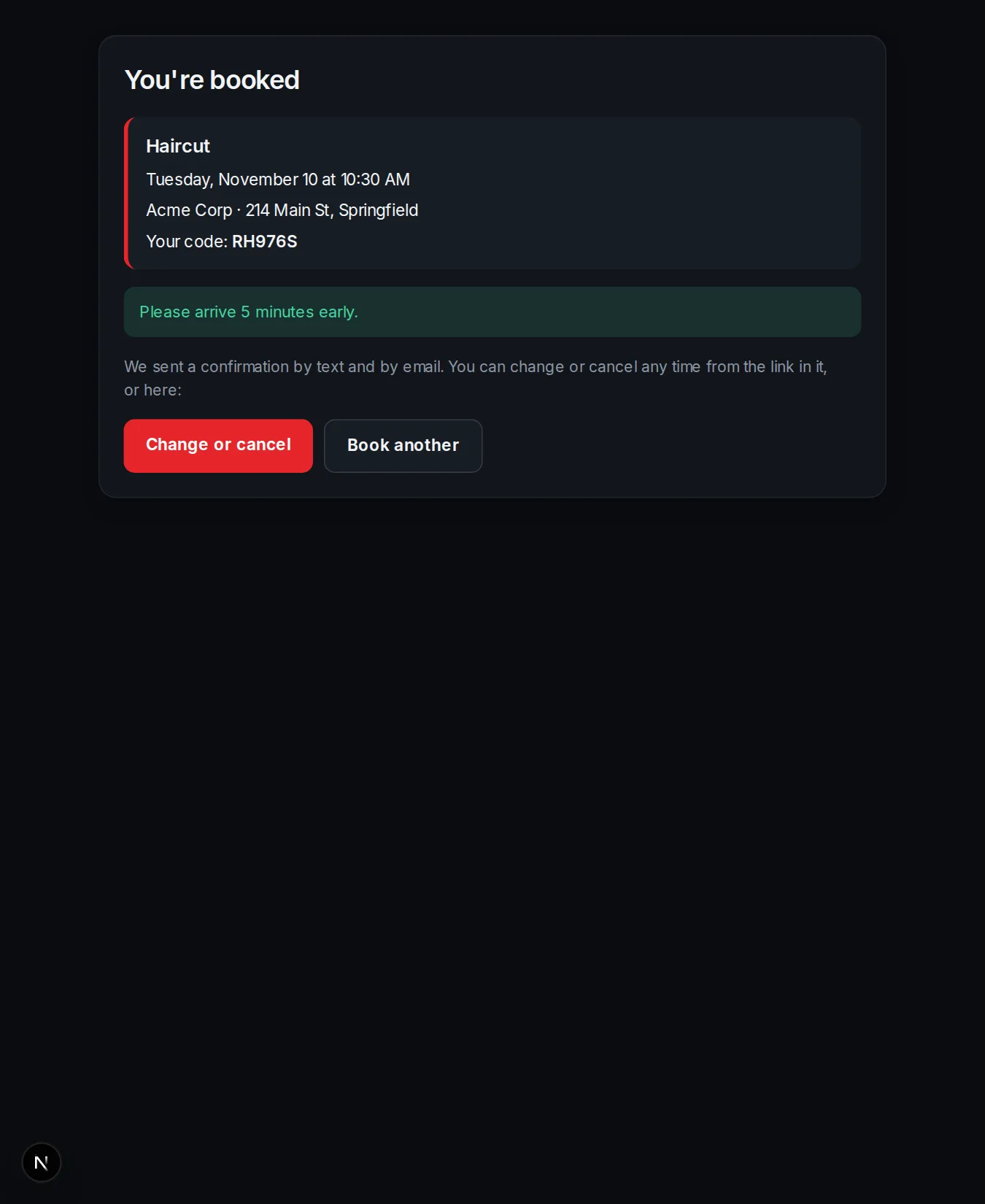
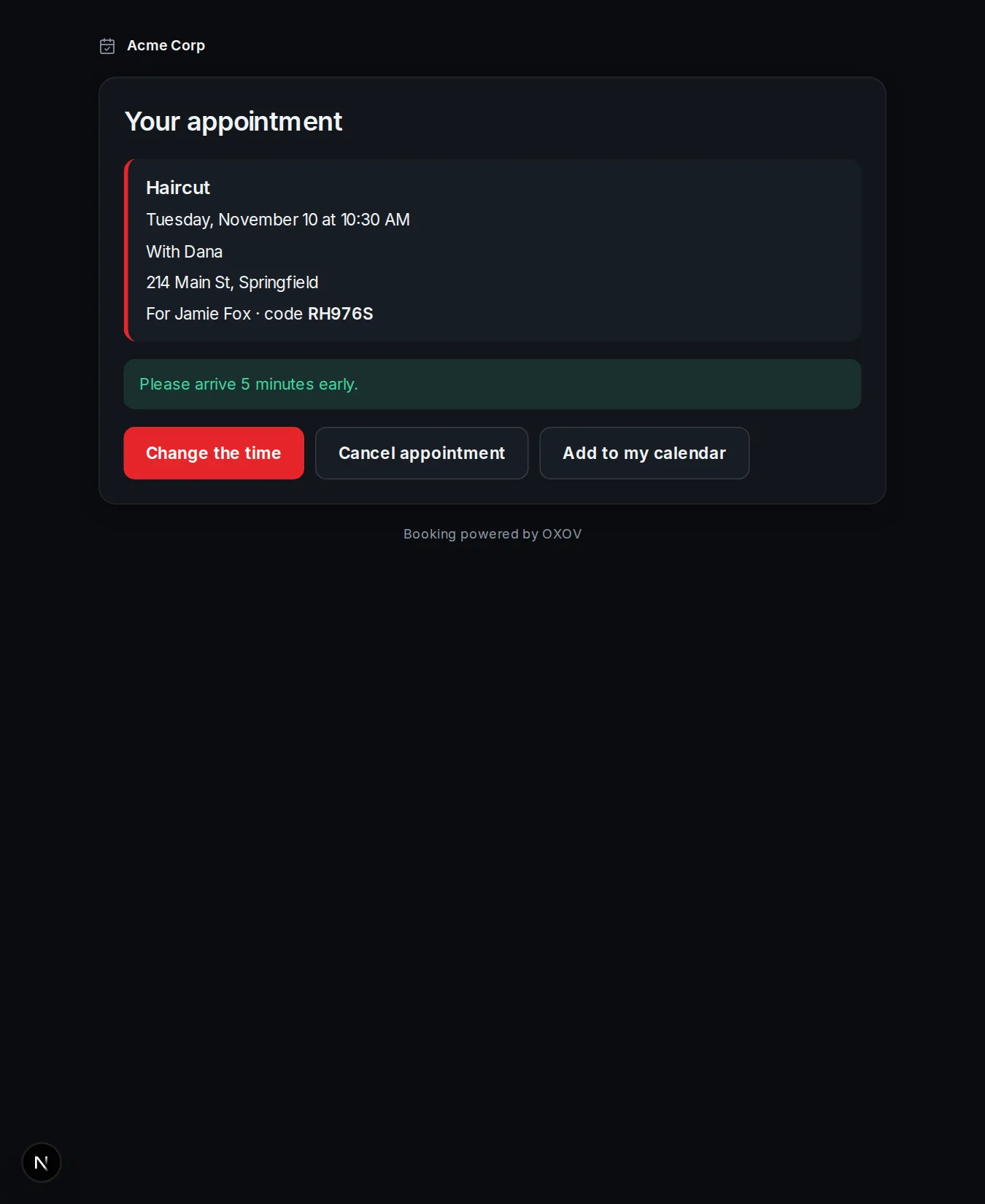
Every confirmation carries a private link. From it the customer can see the appointment, change the time to another free one, cancel, or add it to their calendar. You choose how close to the start they can still change things themselves (right up to the start, or up to two days before); closer than that they are asked to call. Staff and AI agents are not limited by this.
- The booking page shows only services marked Customers can book it on your online booking page.
- It is protected against scripts and floods, and a time someone else just took is refused politely.
- You are told in the bell when a customer or an agent books or a customer cancels.